Learn how to make Twitter account private with residential IPs & fingerprint browser. Step-by-step setup to avoid suspension. MoMoProxy + Dicloak.
Twitter (X) has become increasingly strict about new account registrations. Many users find their accounts suspended within hours or even minutes of creation. The common belief is that "Twitter just bans everyone," – but the reality is more technical.
The key to successful registration lies in two factors:

In this guide, I'll show you how to make your Twitter account private and secure from the very first moment, using professional tools: MoMoProxy for residential IPs and Dicloak for fingerprint isolation. This guide follows EEAT principles – the methods described come from real-world testing and operational experience.
Before diving into the setup, it's important to understand why most registration attempts fail.
Most users register on Twitter using:
Twitter's risk engine evaluates every IP address. Datacenter IPs are easily identified and often flagged. Shared IPs (used by hundreds of people) are even worse – if one person misbehaves, everyone on that IP gets penalized.
Even if you use a clean IP, your browser leaks information:
Twitter combines these signals. If your fingerprint doesn't match your IP, the registration fails, or the account gets flagged.
| Issue | Standard Setup | Professional Setup |
|---|---|---|
| IP type | Datacenter (flagged) | Residential (trusted) |
| WebRTC | Often leaks real IP | Disabled or replaced |
| Canvas fingerprint | Unique to your device | Randomized per session |
| Timezone | Matches physical location | Matches proxy IP |
| Account survival | Hours to days | Months to years |
MoMoProxy provides residential IP addresses that come from real home internet connections around the world. When you use a MoMoProxy IP, Twitter sees a genuine household internet user – not a datacenter or a proxy service.
| Feature | Description |
|---|---|
| IP type | Static residential ISP proxies |
| Coverage | 30+ countries including the US, UK, Japan, Germany |
| Protocols | HTTP, HTTPS, Socks5 |
| Authentication | Username/password or IP whitelist |
| Use case | Twitter registration, account management, social media automation |
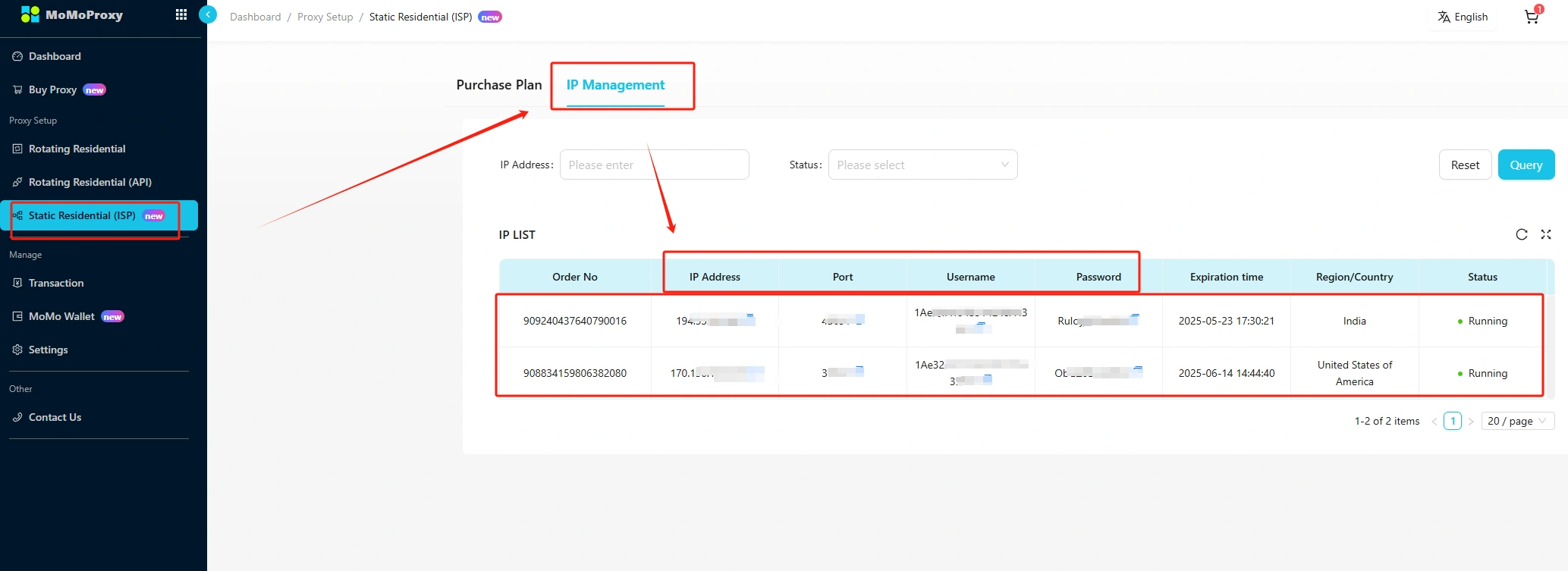
For more details, please read Generate Static Residential Proxy From MoMoProxy
Dicloak is a fingerprint browser that creates completely isolated virtual browser environments. Each environment has its own:
| Feature | Description |
|---|---|
| Fingerprint randomization | One-click generation of unique fingerprints |
| WebRTC control | Disable or replace WebRTC to prevent IP leaks |
| Cookie isolation | Each environment has separate cookies and storage |
| Proxy integration | Direct integration with Socks5/HTTP proxies |
| Multi-account management | Manage hundreds of accounts from one computer |

For details on how to integrate Dicloak with MoMoProxy
In the same Dicloak window, go to [x.com] or [twitter.com].
Click "Create account" and fill in your information:
| Field | Recommendation |
|---|---|
| Name | Any simple English name (e.g., "Alex Chen") |
| Gmail, Outlook, or ProtonMail only | |
| Phone | Avoid restricted-region phone numbers; use email verification instead |
| Birthday | Must be over 18 years old |
Enter the code sent to your email. If Twitter asks for phone verification, use a phone number from a global provider (Google Voice, SMS services). Do not use numbers from restricted regions.
When prompted to follow people or upload a profile picture, click "Skip". Do not post anything. Do not retweet anything. Complete the registration and log out.
This is the core of the guide. After successful registration, follow these steps immediately.
Go to Settings & Privacy → Privacy and Safety.
Under Audience and Tagging, toggle on "Protect your Tweets".
This is the primary answer to "how to make a Twitter account private" – when this setting is enabled, only approved followers can see your tweets. Your tweets will not appear in search results. Retweets of your content are only visible to your followers.
Set Photo Tagging to "Only people you follow can tag you". This prevents strangers from associating your account with unwanted content.
Under Direct Messages, select "People you follow" or "No one". This reduces spam and harassment.
Under Discoverability and Contacts:
These settings prevent Twitter from suggesting your account to people who have your contact information.
Go to Security and account access → Security → Two-factor authentication. Enable 2FA using an authenticator app (Google Authenticator, Authy, etc.). This prevents account takeover even if your password is compromised.
| Setting | Location | Action |
|---|---|---|
| Protect your Tweets | Privacy & Safety > Audience | Toggle ON |
| Photo tagging | Privacy & Safety > Photo tagging | "Only people you follow" |
| Direct messages | Privacy & Safety > DMs | "People you follow" |
| Email discoverability | Privacy & Safety > Discoverability | Uncheck |
| Phone discoverability | Privacy & Safety > Discoverability | Uncheck |
| Two-factor authentication | Security > 2FA | Enable with authenticator app |
| Day | Actions | Avoid |
|---|---|---|
| Day 1 | Log in, browse for 30 minutes | No posts, no likes, no follows |
| Day 2 | Log in, browse for 1 hour | No profile changes |
| Day 3 | Log in, browse for 1 hour | No links, no retweets |
| Day | Actions |
|---|---|
| Day 4 | Add a profile picture (not a generic stock photo) |
| Day 5 | Write a bio (keep it simple and authentic) |
| Day 6 | Follow 5–10 relevant accounts |
| Day 7 | Like a few tweets (3–5 per day) |
If you need multiple Twitter accounts:
| Rule | Action |
|---|---|
| One proxy per account | Each account gets a unique MoMoProxy residential IP |
| One fingerprint per account | Each account gets a unique Dicloak fingerprint |
| No cross-login | Never log into Account A from Account B's environment |
| Separate cookies | Dicloak handles this automatically |
With clean residential IPs, appeal success rates are significantly higher than with datacenter IPs.
Go to Settings & Privacy → Privacy and Safety → Audience and Tagging → toggle "Protect your Tweets" ON. This changes your account from public to private instantly. Existing followers remain, but new followers require approval.
Yes, but each switch is logged by Twitter. Frequent switching (multiple times per week) may trigger risk flags. Decide on your privacy preference and stick with it.
No. When you know how to make a Twitter account private correctly, your tweets cannot be retweeted by anyone except your approved followers. Even then, the retweet is only visible to their followers who also follow you.
For maximum success and anonymity, yes. MoMoProxy provides a clean IP. Dicloak provides a unique fingerprint. Using only one of them leaves a detectable signal.
Free proxies are almost always:
Investing in residential proxies is necessary for serious account management.
Dicloak offers a free tier that supports up to 10 browser environments. This is sufficient for most individual users. Paid plans start at approximately $9/month for additional environments.
For a single Twitter account, keep the same residential IP indefinitely. IP changes are a risk signal. If you must change IP, keep the same country and ISP.
No. Dicloak modifies fingerprints to make each environment look like a unique physical device. Twitter sees a standard browser on a standard computer – not a fingerprint browser.
Understanding how to make a Twitter account private is only half the battle. The other half is creating an account that survives past the first week. Most registration failures happen because of:
By using MoMoProxy for clean residential IPs and Dicloak for fingerprint isolation, you eliminate these failure points. The setup takes less than 10 minutes. The account care process takes one week.
After your account is stable, follow the privacy settings outlined in this guide. Knowing how to make a Twitter account private ensures that your content is only visible to people you approve, giving you full control over your Twitter presence.


