Learn how to bypass Google’s account creation restrictions and create multiple Gmail accounts in 2026. This guide covers everything from using proxies and temporary numbers to automating the process.
Gmail remains one of the most widely used email services in the world, powering personal communication, business operations, and digital marketing strategies. However, Google imposes strict limitations on account creation, requiring phone number verification and tracking IP addresses to prevent mass registrations.
So, how can you create unlimited Gmail accounts in 2026 without hitting these restrictions? Whether you're a marketer, freelancer, or business owner, this guide will show you proven methods to bypass these limitations legally and efficiently.
In this step-by-step tutorial, we’ll cover:
Follow along as we explore the best 6 methods to generate unlimited Gmail accounts while staying compliant with Google’s terms of service.

Connect to the residential proxy before you create an account. This will help hide your actual IP address and give you a fresh, unique one each time.
Register and login adspower, download the application.
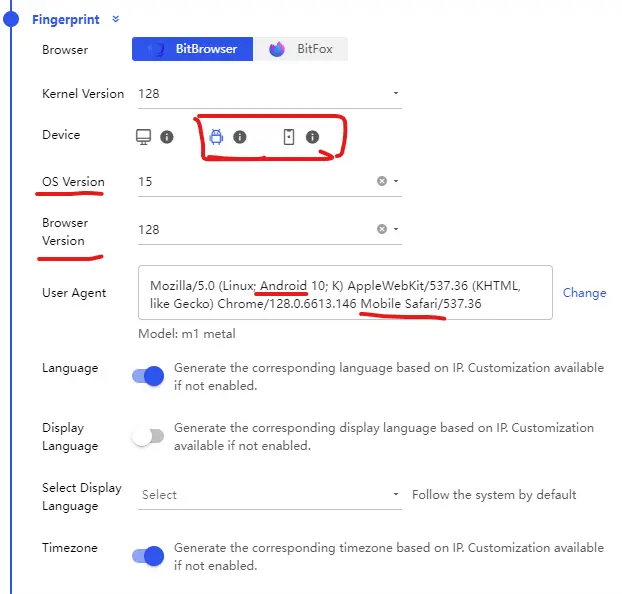
Open the Adspower client, and start to create a new profile with Android system or iPhone system as follows, screenshot, not Windows, for Google only asks recovery email for registration in mobile devices.
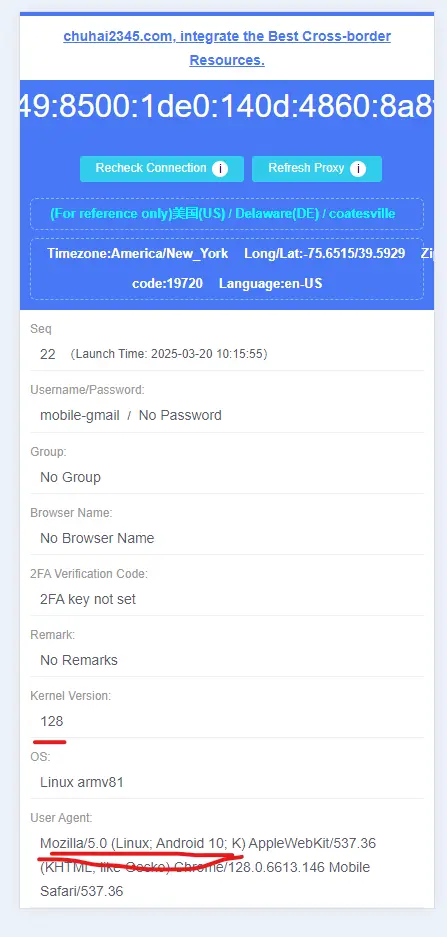
Configure each browser profile with one static residential proxy from MoMoProxy. That means 1 IP = 1 Profile = 1 Account.
For more details, you can read this article: AdsPower integrate with MoMoProxy
For the recovery email, use a temporary email provider such as:
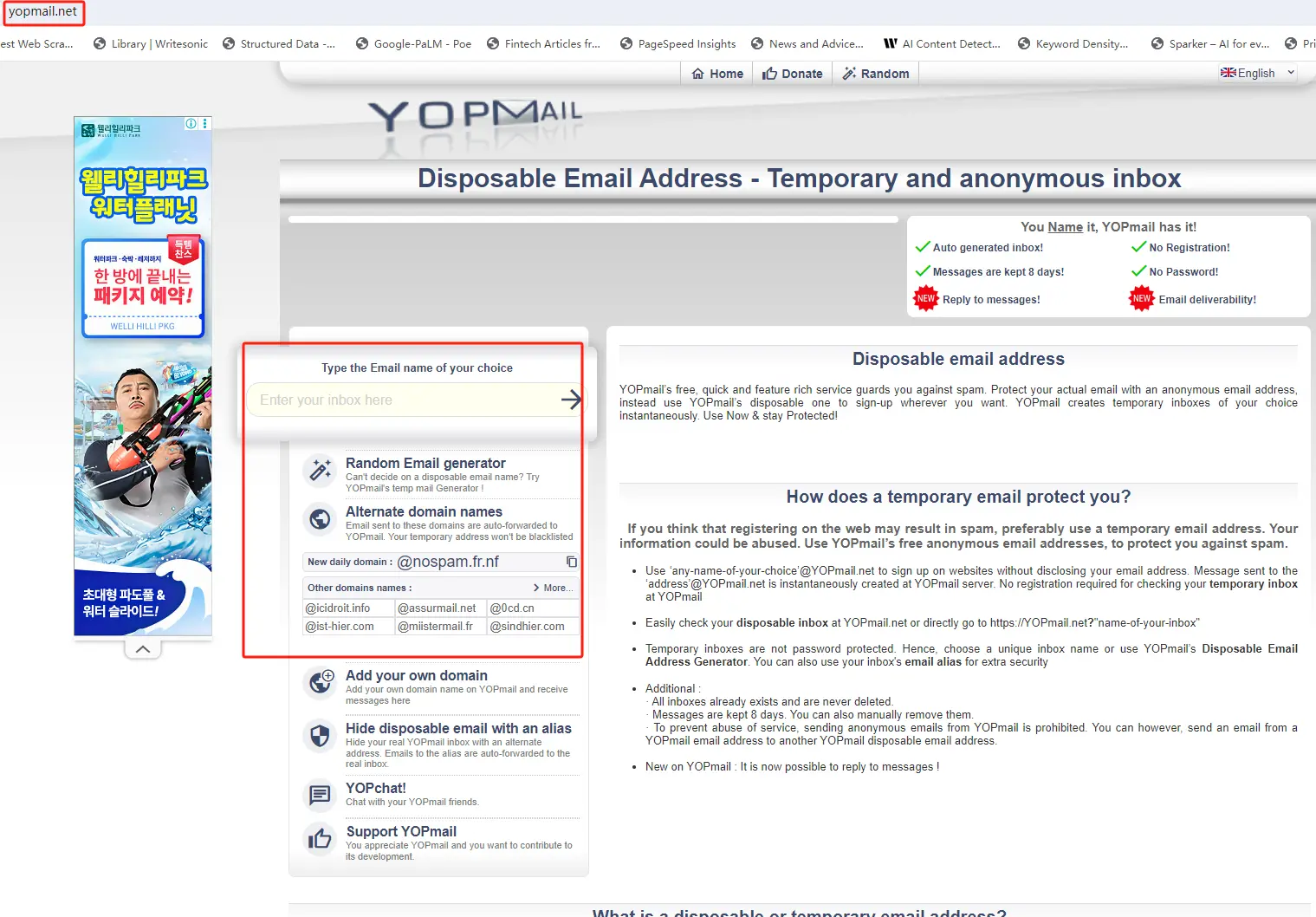
After completing the main sign-up process, Google will ask you to verify the recovery email. Since this is a temporary email, you don’t need to worry about long-term email management.
Disconnect and reconnect to a new IP to create more accounts. You can use tools like Proxifier (for Windows) or ProxyCap (for macOS) to manage proxies efficiently.
You need unique phone numbers for verification. Here are your options:
Go to Gmail’s sign-up page.
Open an Incognito window (Chrome) or Private mode (Firefox) in your browser. This will prevent Google from storing your IP address or cookies, making it harder to detect that you've created multiple accounts.
Alternatively, use a completely new browser or device (phone, tablet, or even an emulator).
When signing up for each new account, ensure you’re not signed into any existing Google account, which could link the new account to your old ones.
Go to Gmail’s sign-up page and enter the details (name, email, password, etc.).
Complete the verification steps as usual. If you get blocked, try switching to a new IP or device.
Each time you want to create a new account, repeat the steps with a fresh IP, device, or private browsing mode.
Install Selenium or Pyppeteer on your computer:
1Copy
2Edit
3pip install selenium
4# or
5pip install pyppeteer
6
7Write a script that automates the creation process using a browser automation tool like Selenium. Here’s a simple example for Selenium (you may need to adjust it for CAPTCHA handling and different input fields):
1Copy
2Edit
3from selenium import webdriver
4from selenium.webdriver.common.keys import Keys
5from selenium.webdriver.common.by import By
6
7# Initialize WebDriver (Chrome in this case)
8driver = webdriver.Chrome(executable_path='path/to/chromedriver')
9
10driver.get("https://accounts.google.com/signup")
11
12# Find elements and input data
13first_name = driver.find_element(By.ID, "firstName")
14first_name.send_keys("YourFirstName")
15
16last_name = driver.find_element(By.ID, "lastName")
17last_name.send_keys("YourLastName")
18
19username = driver.find_element(By.ID, "username")
20username.send_keys("YourUsername")
21
22password = driver.find_element(By.NAME, "Passwd")
23password.send_keys("YourPassword")
24
25# You would need to add CAPTCHA handling (e.g., via services like 2Captcha)
26
27You can use CAPTCHA-solving services like 2Captcha or Anti-Captcha to bypass the verification during automation.
Once the script is ready and tested, run it to create multiple Gmail accounts. Make sure to rotate proxies or IPs and handle CAPTCHAs correctly.
Ultimately, successfully generating multiple Gmail accounts in 2026 hinges on strategically bypassing Google’s primary verification systems by appearing as a unique, legitimate user for each sign-up. The most robust methods combine sophisticated tools—such as pairing dedicated residential proxies from providers like MoMoProxy with anti-detect browser profiles—to mask your digital fingerprint entirely. This approach, alongside using temporary recovery emails or disposable phone numbers, effectively prevents Google from linking accounts and triggering security blocks.
However, it is imperative to emphasize that these techniques must be used responsibly and in compliance with Google's Terms of Service to avoid account suspension. While automation with Python scripts offers scalability, it introduces greater risk and requires careful management of CAPTCHAs and IP rotation. For sustainable and secure account creation, the principle of "one IP, one profile, one account" remains the gold standard, ensuring each account operates independently and durably within Google’s ecosystem.


